
Update decision at a glance
- Verified source
- Cisco Networking Academy Resource Hub
- Public version evidence
- Cisco material references Packet Tracer 9.0; confirm the current package after sign-in
- File size
- Not publicly stable; check the value Cisco shows for your platform
- Protect first
- Back up PKT, PKA, custom activity, and assessment files
- Checked
- July 16, 2026
Check whether Packet Tracer needs an update
Open Packet Tracer and use its About or application information screen to record the installed version. Then visit Cisco's current Packet Tracer or Resource Hub page and compare the version and platform package shown there. Do not decide from a third-party download portal, an old video title, or a filename copied into a forum post.
An update is most useful when Cisco provides a newer supported build, a course or instructor requires it, your current release cannot open a shared activity, or a documented compatibility problem affects your operating system. If a class depends on a specific release, follow the instructor's compatibility requirement instead of upgrading every computer at different times.
Cisco's public pages do not always expose a stable version number, file size, or direct installer URL before sign-in. Treat the authenticated Cisco page as the final source of truth.
Back up PKT and PKA files before updating
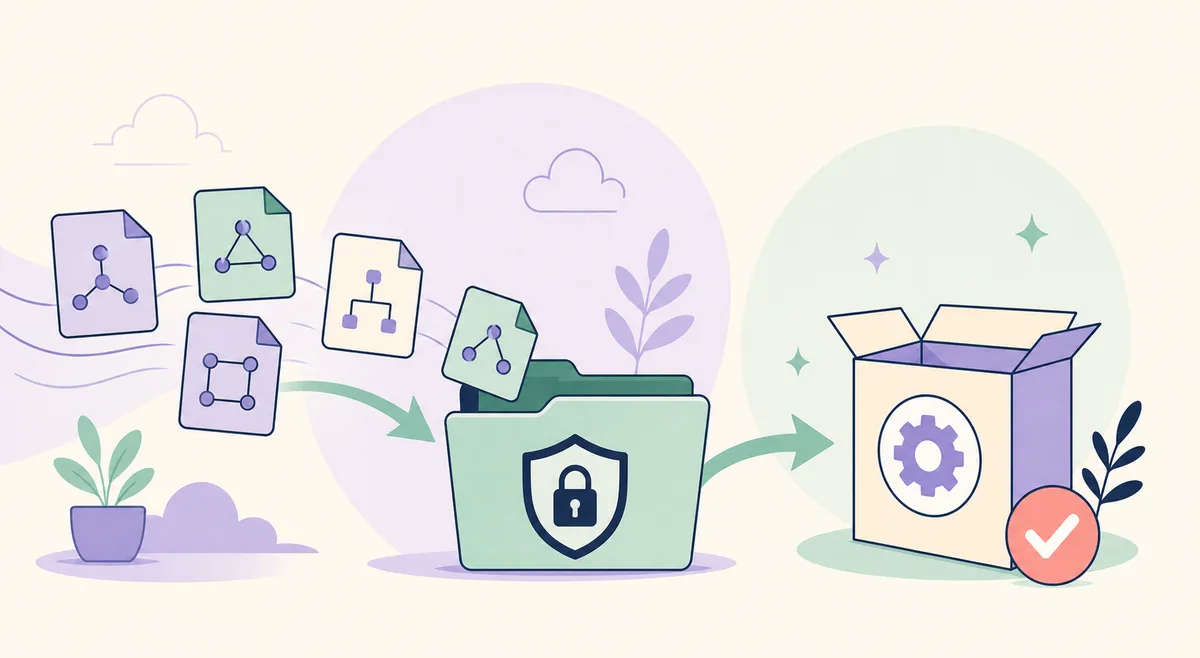
Updating normally preserves personal files, but coursework is too important to leave to an assumption. Close Packet Tracer, locate every folder used for labs, and copy the projects to a separate folder, external drive, or institution-approved cloud location. Keep the original filename and add a dated parent folder so the backup is easy to recognize.
Include more than ordinary PKT topologies. PKA activities, custom device templates, assessment files, screenshots, notes, and any instructor-provided starter files may live outside the folder you use most often. If a project is currently open, save it, close the application, and then copy the file so the backup is not made from an incomplete write.
- Copy all PKT and PKA files, not only the last lab you opened.
- Record the installed version and operating-system edition.
- Save account or course details without storing passwords in the project folder.
- Keep the previous official installer only when your institution permits it and its source is known.
- Test that at least one copied project opens from the backup location.
How to update Cisco Packet Tracer step by step
Packet Tracer does not have one permanent public installer link that is safe to reuse forever. The reliable method is to start from Cisco, choose the package presented for the current platform, and keep the old application closed while the installer runs.
- 1
Finish and back up active labs
Save every open activity, close Packet Tracer, and confirm the backup copy can be read.
- 2
Open Cisco's official Resource Hub
Use the Cisco link on this page, sign in if requested, and find the Packet Tracer downloads supplied for your account.
- 3
Verify version, platform, and package
Compare Cisco's displayed version with the installed version. Select Windows, macOS, or the Linux package that matches your system and architecture.
- 4
Run the official installer
Close the previous release, use an account with installation permission, and follow the installer prompts. Do not run a second package from a mirror if the first download seems slow.
- 5
Launch, sign in, and test
Open the new release, complete Cisco's sign-in flow if shown, create a tiny topology, and reopen a backed-up project before deleting the old installer.
Windows, macOS, and Linux update notes
The overall workflow is the same, but package checks and permissions differ by operating system. Use the platform guide linked below if Cisco's current package or your computer does not match these general notes.
| Platform | Before installation | During update | After update |
|---|---|---|---|
| Windows | Confirm 64-bit Windows support, free space, and administrator permission. | Close Packet Tracer and run the Cisco-provided installer. If Windows shows a publisher prompt, verify it belongs to the file just downloaded from Cisco. | Check the Start menu shortcut, sign-in, project opening, and firewall prompts. |
| macOS | Check the macOS release, processor type, available storage, and institutional security policy. | Open the Cisco package through normal macOS security controls. Do not disable system protection to force an unknown package to run. | Verify launch permission, sign-in, file access, and saved-project reopening. |
| Linux | Confirm the distribution, architecture, package format, dependencies, and installation rights. | Use the package and instructions Cisco currently supplies. Avoid converting packages unless you understand the support tradeoff. | Start from a terminal if needed, record exact dependency errors, and test PKT file associations. |
| Managed lab computer | Ask the instructor or administrator which release the class supports. | Let the administrator deploy the approved package if local policy blocks installation. | Test the same course activity used by the rest of the class before a graded session. |
Verify the update with a real lab file
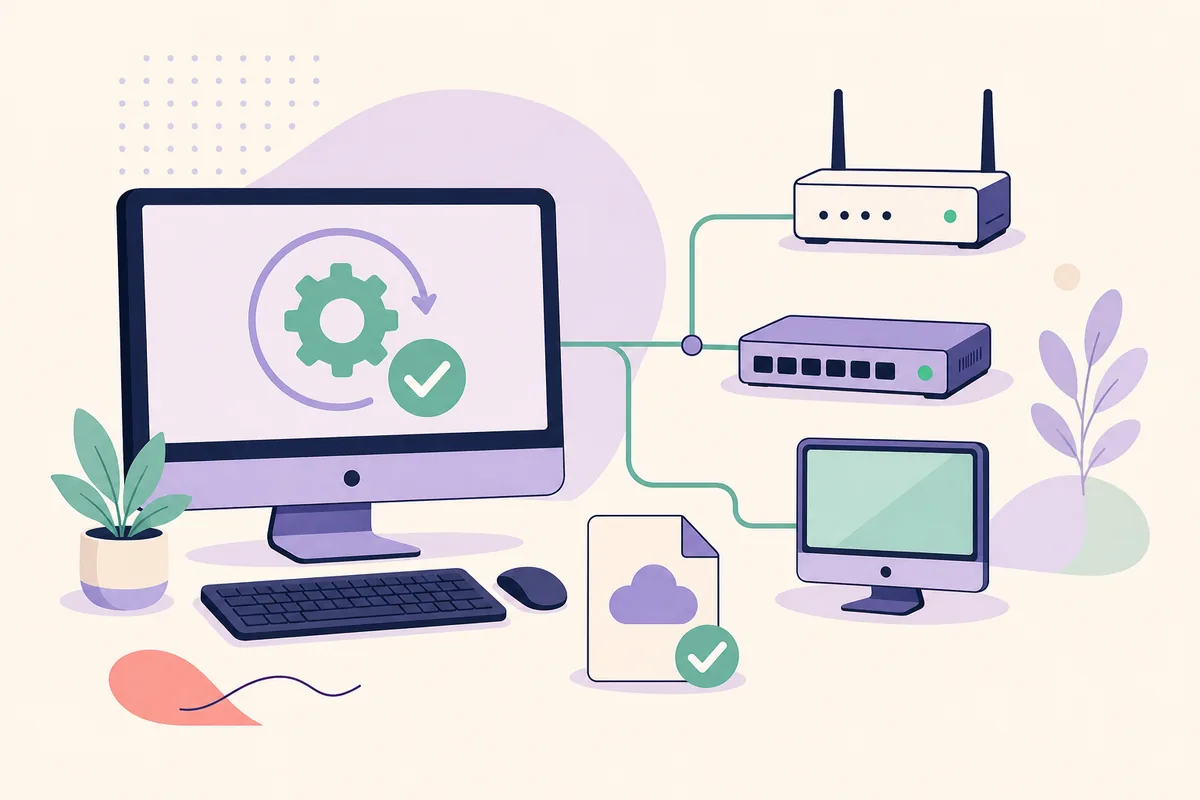
A successful launch does not prove that the whole update is ready for coursework. Open a copy of an existing lab, inspect device labels and connections, switch between Logical and Physical views if the activity uses them, enter Simulation mode, and save the file under a new test name. Close Packet Tracer and reopen that test copy.
If the project was created in a newer release, an older installation may not read every feature. The reverse direction can also matter in shared classes: saving a file in a newer release may make it unsuitable for a computer that still uses an older build. Keep the untouched backup until every required classroom computer has been checked.
- Confirm the version shown inside the updated application.
- Create and connect two devices in a small test topology.
- Open a backed-up PKT or PKA file without overwriting the original.
- Run Simulation mode or the activity's key feature.
- Save under a new name, close the application, and reopen the test copy.
Fix common Packet Tracer update problems
If the installer will not start, verify the package source, platform, architecture, available storage, and account permissions. If Packet Tracer launches but sign-in fails, separate that account problem from the installation: confirm the browser, network, system clock, and Cisco account access without repeatedly reinstalling the program.
When a saved project behaves differently, work from a copy. Record the exact application version, operating system, error message, and whether the file opens on another approved computer. Reinstalling may help a damaged installation, but it will not repair a corrupted project or make an unsupported activity compatible.
- Unknown publisher or checksum concern: delete the file and download again from Cisco.
- Permission error: use the approved administrator process instead of disabling security controls.
- Linux dependency error: record the exact package name and follow the distribution-specific guide.
- Project will not open: test a backup copy and compare Packet Tracer versions.
- Course mismatch: ask the instructor which release all lab computers should use.
Packet Tracer update FAQ
What is the latest Cisco Packet Tracer version?
Cisco public material checked on July 16, 2026 references Packet Tracer 9.0, but Cisco can change the package, version, file size, or availability. Confirm the version shown in the authenticated Cisco Resource Hub before downloading.
Can I update Packet Tracer inside the app?
Do not assume an in-app notice is the complete update path. Compare your installed version with Cisco's current download page and use the official package Cisco provides for your platform.
Will updating delete my PKT files?
An update should not be treated as a project backup. Copy PKT, PKA, custom activities, and course files to a separate location before installation, then test a copy in the new release.
Should I uninstall the old version first?
Follow the instructions shown by Cisco's current installer and your institution. In every case, close the old release, back up projects, and avoid running two installers at the same time.
Why does a project fail after the update?
Possible causes include a damaged project, release compatibility, missing custom assets, permissions, or an incomplete installation. Test a backup copy, record the exact error, and compare behavior on another approved computer.
Can I download the update from a mirror?
A mirror may distribute an old, modified, or bundled installer. Use Cisco Networking Academy or another Cisco-controlled page so the source, package, and account flow remain verifiable.
Official sources checked
- Cisco Networking Academy Resource Hub
Official sign-in and download destination for the packages Cisco currently makes available.
- Cisco Packet Tracer product page
Official product overview and access path.
- Cisco Networking Academy Packet Tracer 9.0 material
Official Cisco learning material used to verify the public Packet Tracer 9.0 reference; current downloads must still be checked in the Resource Hub.