

Quick facts before you type
- Best first check
show ip interface brief- Main scope
- IOS-style commands available on the selected Packet Tracer device
- Safe loop
- Inspect → configure one change → verify → save
- Help shortcut
- Use
?at the current prompt before guessing - Important limit
- A command may differ by device model, mode, or Packet Tracer support
What this Packet Tracer commands cheat sheet covers
A cheat sheet is useful when you already know the lab objective but need a reliable reminder of the command family, the prompt where it works, or the verification command that proves the change. Start with the device CLI, read the prompt, and use the smallest command that answers the next question. Do not paste a long block simply because it appears in an activity answer.
The reference below covers common router and switch work: entering IOS modes, inspecting interfaces and routes, assigning an address, enabling a port, checking VLANs, testing reachability, saving a configuration, and asking IOS for context help. It is a practical learning aid, not a claim that every Packet Tracer device implements every Cisco IOS feature.
- Use a router or switch CLI for IOS commands; use a PC's Desktop > Command Prompt for host tests such as ping and ipconfig.
- Read the prompt before each command. The same word can be valid in one mode and invalid in another.
- Verify an existing state before changing it, then run a targeted show or test command after the change.
- Keep the lab objective, expected output, and exact error message beside the command you are testing.
IOS command modes at a glance
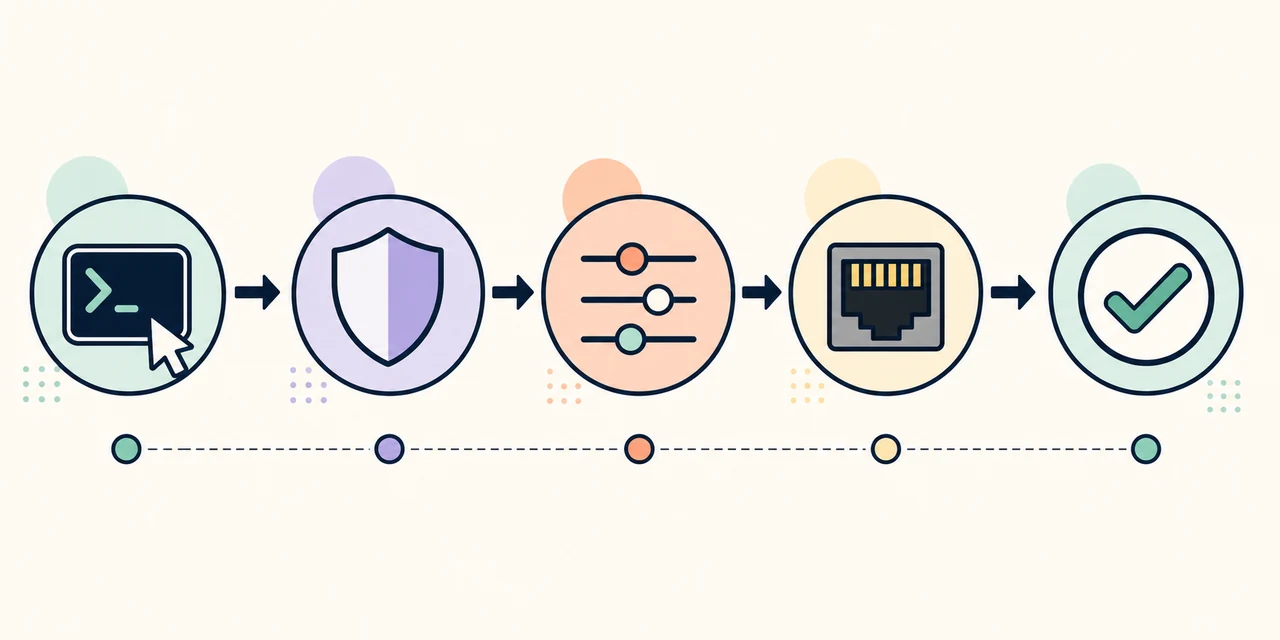
The prompt is a map. User EXEC normally ends with >, privileged EXEC ends with #, global configuration ends with (config)#, and interface configuration ends with (config-if)#. If a command is rejected, first check whether the prompt places you in the wrong mode.
Use exit to move back one level and end to return to privileged EXEC from a configuration submode. The visual flow is a reminder of the sequence; the exact available modes still depend on the selected device.
| Prompt or mode | Typical entry | Useful next action |
|---|---|---|
User EXEC > | Open the device CLI | Run basic checks or enter enable |
Privileged EXEC # | enable | Run show, ping, save, or enter configuration |
Global config (config)# | configure terminal | Choose an interface, VLAN, routing, or other feature |
Interface config (config-if)# | interface g0/0 | Set an address, description, or no shutdown |
| Return to EXEC | exit or end | Run a show command and compare the result with the objective |
Core Packet Tracer commands by task
Use the table as a starting point, then adapt the interface name, address, VLAN ID, and device support to your topology. Commands such as show running-config and show ip route are read-only checks; configuration commands change the device state and should be entered deliberately.
IOS accepts abbreviations only when they are unambiguous on that device. For a beginner lab, the full command is usually easier to read later and easier to compare with a course rubric.
| Command | Purpose | Mode |
|---|---|---|
show ip interface brief | See interface status, protocol state, and addresses | # |
show running-config | Inspect the active configuration | # |
show ip route | Check the routing table | # |
show vlan brief | Check VLANs and switch ports | # |
enable | Move from User EXEC to privileged EXEC | > |
configure terminal | Enter global configuration mode | # |
interface g0/0 | Select an interface for configuration | (config)# |
ip address 192.0.2.1 255.255.255.0 | Assign an example IPv4 address | (config-if)# |
no shutdown | Administratively enable an interface | (config-if)# |
ping 192.0.2.2 | Test reachability to a destination | > or # |
traceroute 192.0.2.2 | Inspect the path toward a destination | # |
copy running-config startup-config | Save the current configuration | # |
Verification commands before troubleshooting
When a ping fails, do not jump straight to a new configuration. Ask one question at a time. Is the cable connected? Does the interface show up and up? Is the address and mask correct? Is the next hop or route present? Is a VLAN or ACL deliberately filtering the traffic? A short verification sequence turns a vague failure into a smaller problem.
For an interface task, a useful sequence is show ip interface brief, show running-config, and a targeted ping. For routed labs, add show ip route. For switched labs, add show vlan brief and inspect the port mode required by the activity. Save only after the observed state matches the lab objective.
- Check Status and Protocol separately; an address alone does not prove a working link.
- Use
show interfaceswhen you need counters, errors, duplex, speed, or detailed line state. - Use
show access-listsfor an ACL lab and compare hit counts with the test traffic. - Use Simulation mode to observe a packet only after the basic device state is understood.
Help and navigation shortcuts
The question mark is a learning tool, not a last resort. Type ? at a prompt to see available commands, or type a command prefix followed by ? to see the next valid choice. The output varies by mode and device, which is why context help is more reliable than copying a list from a different router or switch.
Tab completes an unambiguous command, the Up Arrow recalls command history, exit backs out one level, and end returns to privileged EXEC. If a caret appears under a command, inspect the first unrecognized character, the prompt, spelling, abbreviation, and whether that Packet Tracer device supports the feature.
- 1
Read the prompt
Confirm whether you are at
>,#,(config)#, or an interface submode. - 2
Ask for context
Use
?or a partial command with?before guessing the next word. - 3
Complete carefully
Use Tab only when the abbreviation is unambiguous on the selected device.
- 4
Verify the result
Run the smallest relevant
show, ping, or traceroute command and compare it with the objective.
A safe Packet Tracer command workflow
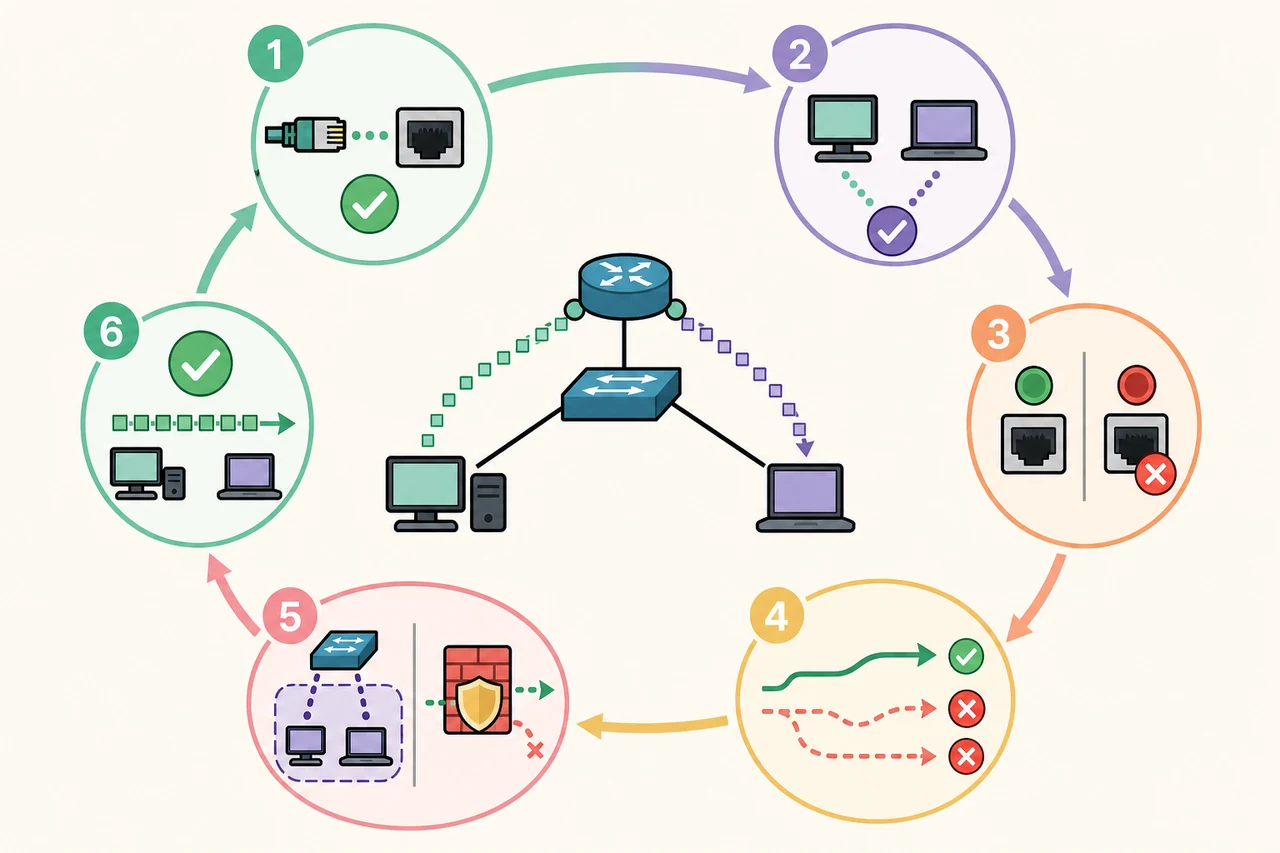
Treat a lab like a small experiment. Write down the expected state, inspect the current state, change one item, and test the same state again. This is faster than pasting an entire configuration because you can identify the exact command that created the mismatch and preserve the evidence for your notes.
The diagram below is a compact troubleshooting order. Start with the physical or logical connection, then address and interface state, routing, VLAN or ACL policy, and finally an end-to-end test. If a step fails, stay at that layer until the evidence is clear; do not hide a link problem with an unrelated routing change.
- Do not assume a command exists because it works on another device type; use context help and the device documentation.
- Use example documentation addresses such as 192.0.2.0/24 in notes, then replace them with the addresses required by your lab.
- Keep PKT or PKA project copies before major changes, especially when an activity is graded or shared.
- If the activity expects a particular command or output, follow the instructor's task requirements even when another syntax also works.
What this cheat sheet does not promise
Packet Tracer is a learning simulator, so command support, output, and device behavior can differ from a physical Cisco platform or a particular IOS release. A command that is valid in a course file may be unavailable on the device you placed. Read the selected device's prompt and use the lab's instructions as the final authority.
This page is designed for learning and verification, not for bypassing course assessment, distributing answer files, or presenting an unofficial installer. For a step-by-step first network, continue to the Packet Tracer tutorial; for structured practice, use the Packet Tracer labs.
Packet Tracer commands FAQ
Where do I enter Packet Tracer commands?
Open a router or switch, select the CLI tab, and press Enter when the console is ready. Use a PC's Desktop > Command Prompt for host commands such as ping and ipconfig.
How do I find all commands in Packet Tracer?
Use ? at the current prompt, or type a command prefix followed by ?. The result is contextual, so the available list changes with the mode and device.
Which commands should I use first on a switch?
Start with show ip interface brief, show vlan brief, and show running-config. Then use the lab objective to decide whether you need an interface, VLAN, trunk, or spanning-tree command.
How do I find show interface commands?
At privileged EXEC, type show ? to list show families, then use show interfaces ? or show ip interface ? for contextual options. Prefer the full form while learning.
How do I check the routing table in Packet Tracer?
Use show ip route from privileged EXEC. If the expected route is missing, check the interface address, next hop, routing configuration, and whether the selected device supports the feature.
Why does a Packet Tracer command return invalid input?
Check the prompt, spelling, abbreviation ambiguity, interface name, and device support. A caret usually points near the first character IOS cannot interpret in the current context.
Should I save after every command?
No. Verify the change first, then save a working configuration with copy running-config startup-config when the lab or instructor expects persistence. Keep a project copy before major edits.
Official references
- Cisco Packet Tracer 9.0 announcement
Cisco product and release context; verify current package details in the authenticated Cisco resource flow.
- Cisco Packet Tracer product page
Official learning and product entry point; Cisco controls access, package availability, and platform requirements.
- Cisco Networking Academy Resource Hub
Official destination for current Packet Tracer resources and lab downloads.