
Packet Tracer lab quick facts
- Best first lab
- Two PCs, one switch, static IPv4 addresses, and a successful ping
- Practice order
- Build → address → verify → document → break one setting → repair it
- Useful files
- PKT is a saved topology; PKA may include instructions, scoring, or assessment logic
- Official source
- Cisco Networking Academy Resource Hub
- Version policy
- Confirm the current release at Cisco; no unverifiable version number is repeated here
- Ethical boundary
- Practice configurations and troubleshooting, not copied assessment answers or answer keys
What makes a useful Packet Tracer lab?
A useful lab has a clear starting state, a small number of objectives, an addressing plan, and a test that proves whether the network works. The goal is not to place as many routers as possible. The goal is to predict what should happen, configure it, observe the result, and explain any difference between the prediction and the simulation.
For a beginner, the best Packet Tracer labs isolate one skill. A switching lab should not also require unfamiliar dynamic routing, wireless authentication, server services, and access lists. Once the basic task works, save a clean checkpoint, duplicate the file, and introduce one failure such as a wrong mask, disabled interface, incorrect gateway, or cable on the wrong port.
Keep a short lab notebook. Record the topology, IP plan, commands used, expected result, actual result, and final fix. That habit is more valuable than memorizing a finished configuration because it teaches a process you can reuse on unfamiliar networks.
| Level | Topology | Main skill | Proof of success |
|---|---|---|---|
| 1. First connection | 2 PCs + 1 switch | IPv4 addressing and cabling | PC-to-PC ping succeeds |
| 2. Two networks | 2 PCs + 2 switches + 1 router | Default gateways and router interfaces | Both subnets communicate |
| 3. Segmentation | 1 switch + 4 PCs | VLANs and access ports | Same-VLAN hosts connect; other traffic is separated |
| 4. Inter-VLAN | 1 switch + 1 router + 4 PCs | Trunks and router-on-a-stick | Hosts in different VLANs communicate |
| 5. Services | Clients + server + router | DHCP, DNS, HTTP | Clients receive settings and open the test page |
| 6. Routing | 3 routers + LANs | Static routes or a basic routing protocol | End-to-end routes appear and pings pass |
| 7. Security | Switch or edge router + clients | Port security or a simple ACL | Allowed traffic passes and denied traffic is verified |
Build your first Packet Tracer lab step by step
Begin in the Logical workspace with two end devices and one switch. Use the device palette to add the equipment, rename the PCs so your notes match the topology, and connect each PC to a switch access port. Let Packet Tracer choose the cable automatically if you are still learning media types, then repeat the lab later with a deliberate cable choice.
Assign both PCs addresses from the same subnet, for example 192.168.10.10/24 and 192.168.10.20/24. A default gateway is not required for communication inside one subnet. Wait for switch ports to transition to an active state, open Command Prompt on one PC, and ping the other address. If the first ping times out while address resolution completes, repeat it before changing the configuration.
Save the working topology as a baseline. Then create a troubleshooting copy and change exactly one value. A wrong subnet mask, duplicate address, disabled network interface, or disconnected cable creates a focused failure that you can reason about. Avoid changing several items at once because you will not know which correction restored connectivity.
- 1
Write the objective first
State one result, such as two hosts on the same LAN can ping each other.
- 2
Draw the smallest topology
Use only the devices required to test the objective and give every device a clear name.
- 3
Create an address table
List every interface, IPv4 address, subnet mask, and gateway before opening configuration windows.
- 4
Configure from the edge inward
Set host addresses, switch access ports, router interfaces, and then optional services.
- 5
Verify each layer
Check links, interface state, local addressing, ARP, routes, and finally the application or ping result.
- 6
Save and document
Keep a clean working file and a separate broken copy with the cause and repair recorded.
Seven beginner Packet Tracer labs to practice
Use the following activities as a progression rather than seven unrelated projects. Repeat each lab until you can rebuild it without copying commands line by line. The exact device model matters less than understanding interfaces, addressing, forwarding decisions, and evidence.
For every activity, create a success test before configuration. A lab is complete only when the evidence matches the objective: interface status is correct, the routing table contains the expected network, DHCP assigns the planned range, DNS resolves the intended name, or an ACL blocks only the traffic it was designed to block.
- 1
Same-subnet LAN
Connect two PCs to one switch, assign addresses in one /24 network, and verify pings in both directions.
- 2
Two routed LANs
Add a router between two switches, configure both router interfaces, add host gateways, and prove end-to-end reachability.
- 3
VLAN separation
Create two VLANs, assign access ports, and observe why hosts in different VLANs cannot communicate without Layer 3 routing.
- 4
Router-on-a-stick
Create a trunk, add router subinterfaces with 802.1Q tags, and test traffic between the VLANs.
- 5
DHCP and DNS
Configure a server or router service, lease addresses to clients, publish one name record, and verify both address assignment and name resolution.
- 6
Three-router path
Build three connected routers, add static routes, inspect the routing table, and use ping or traceroute to verify the path.
- 7
Port security or ACL
Allow a defined device or protocol, trigger the denied condition, and confirm that permitted traffic still works.
Do not publish or download copied course assessment answers. Build equivalent practice topologies from stated objectives, and use Cisco-provided activities when a course requires a scored PKA file.
How to verify and troubleshoot a Packet Tracer lab
Troubleshooting should move from the simplest evidence toward the most specific configuration. First inspect the topology: are devices powered, are the intended interfaces connected, and have links reached an active state? Next confirm host addresses and masks. Then check the default gateway, switch VLAN membership, router interface status, and routing table.
Use commands as evidence, not decoration. On Cisco IOS devices, `show ip interface brief` gives a fast interface summary, `show running-config` confirms the active configuration, `show vlan brief` checks access-port membership, `show interfaces trunk` confirms trunks, and `show ip route` shows which networks the router can forward toward. On PCs, use the IP configuration panel, Command Prompt, ping, and traceroute where available.
Simulation Mode can reveal where a packet stops, but start with Realtime Mode and normal verification. If you switch to Simulation Mode, filter the event list to the protocols you need so background traffic does not hide the test. Follow one packet, compare each hop with your address plan, and return to the configuration that controls the failed decision.
| Symptom | Check first | Common cause | Useful evidence |
|---|---|---|---|
| No link | Cable and interface state | Wrong port, disabled interface, startup delay | Port color and `show ip interface brief` |
| Local subnet ping fails | Host IP and mask | Different subnet, duplicate IP, host interface off | PC IP configuration and ARP behavior |
| Remote subnet ping fails | Gateway and routes | Missing gateway, down router interface, missing route | `show ip route` and hop-by-hop pings |
| VLAN hosts cannot connect | Access VLAN and trunk | Wrong VLAN, trunk not carrying VLAN, missing subinterface | `show vlan brief`, `show interfaces trunk` |
| Name fails but IP works | DNS settings and record | Wrong DNS server or missing record | Client settings and server DNS service |
| ACL blocks too much | Rule order and wildcard mask | Broad deny before specific permit | ACL counters and source/destination test matrix |
Move from connectivity to services and security
After basic connectivity is reliable, add one application service. A simple HTTP or DNS task forces you to separate network reachability from application configuration. If a client can ping the server address but cannot open the page or resolve the name, the network path may be correct while the service, port, or record is wrong.
Security labs need a test matrix. Write which source, destination, and protocol should be allowed, then write a matching denied case. Test both. An ACL that blocks the unwanted packet but also breaks every legitimate flow is not correct. The same principle applies to port security: prove the expected device works before and after triggering the violation condition.
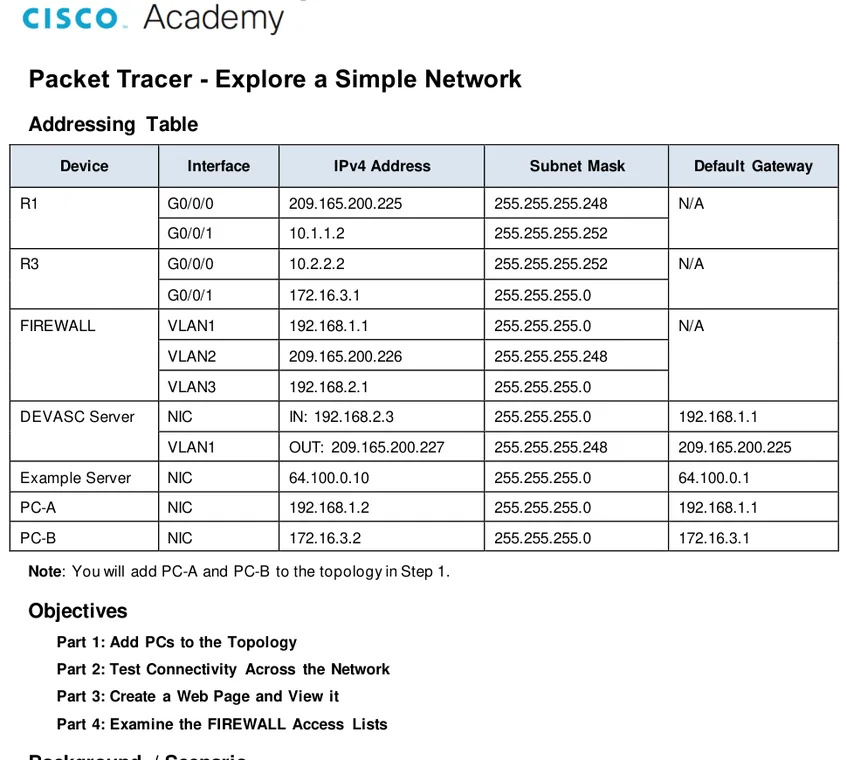
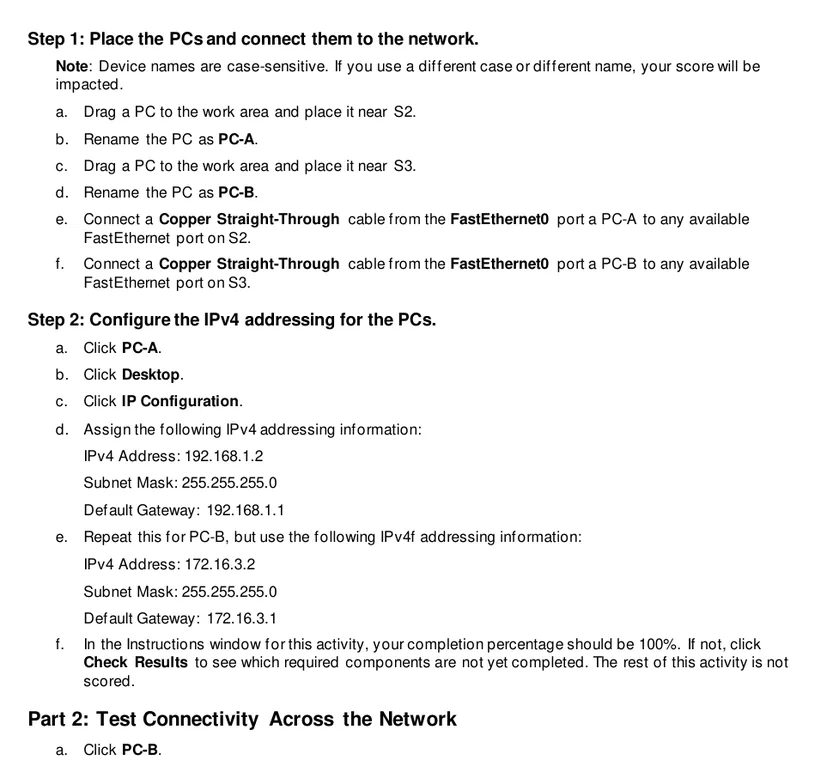
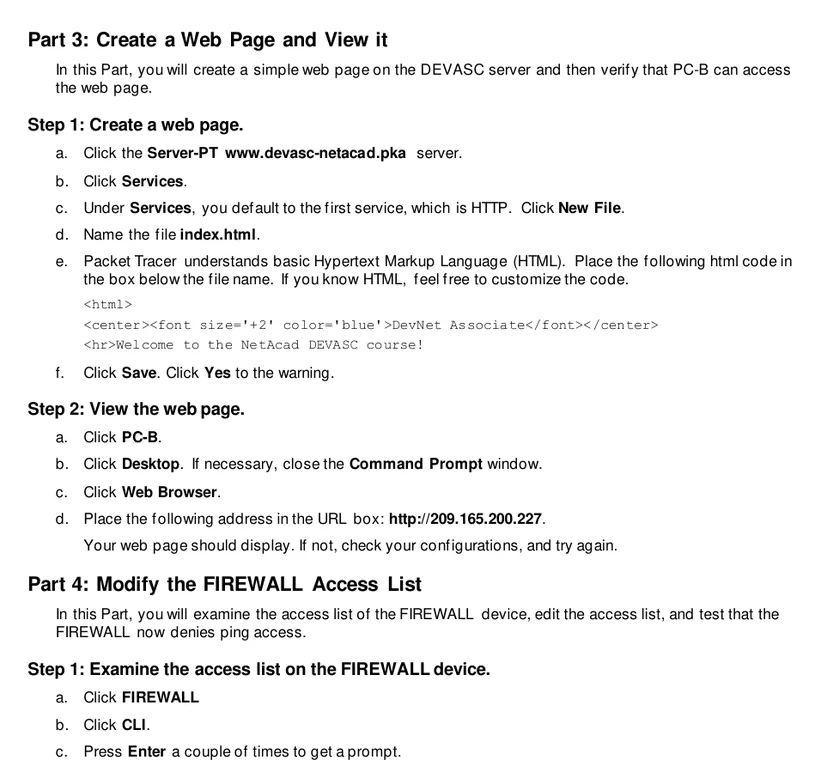
The official lab excerpt below combines server service checks with firewall access-list inspection. It is a useful reminder that later Packet Tracer practice should connect configuration commands to observable client behavior rather than stopping after a command is entered.
- Test the IP address before testing a DNS name.
- Verify the server service is enabled and bound to the expected address.
- Write permit and deny expectations before entering ACL commands.
- Retest an allowed flow after every security change.
- Save a checkpoint before adding security so you can isolate the new failure.
Where to find legitimate Packet Tracer labs
Start with Cisco Networking Academy or Skills for All resources associated with your course. Cisco's Resource Hub describes hands-on practice activities and the Packet Tracer simulator, while individual courses may provide PKT or PKA files after sign-in or enrollment. Availability, scoring behavior, and required Packet Tracer release can change, so rely on the current course instructions rather than a copied file description.
Public Cisco lab PDFs are also useful because they show objectives, addressing tables, verification tasks, and expected learning outcomes. When a public handout refers to a companion activity file that is not publicly downloadable, use the handout as a model for your own topology or access the file through the course that owns it.
Avoid random repositories that advertise complete assessment answers, unlocked PKA files, cracks, repacks, or direct installers. Besides copyright and integrity concerns, old activity files may behave differently in a newer simulator, and answer dumps remove the troubleshooting practice that makes the lab valuable. If Packet Tracer is not installed, use the official download guide or the NetAcad access guide before looking for third-party files.
- Prefer a Cisco-controlled domain and course context.
- Read the objective and address table before opening the activity.
- Treat PKT as a topology file and PKA as a potentially scored activity.
- Do not trust a filename alone as proof that an activity is official or current.
- Back up your own lab files before using the Packet Tracer update guide.
A four-week Packet Tracer practice plan
A short daily session is more effective than building one oversized topology and abandoning it. Use four sessions per week: one guided build, one rebuild from memory, one troubleshooting variation, and one explanation session where you document why each device and command exists.
Keep the scope stable inside each week. Week one is addressing and switching; week two adds routing; week three adds VLANs and services; week four adds controlled security and mixed troubleshooting. At the end of each week, rebuild one topology from a blank file and verify it with a written checklist rather than relying on the visual appearance of green links.
| Week | Focus | Build | Troubleshooting variation |
|---|---|---|---|
| 1 | LAN basics | Two PCs, switch, static addressing | Wrong mask, duplicate IP, disabled host interface |
| 2 | Routing | Two LANs and then a three-router path | Missing gateway, down interface, missing static route |
| 3 | VLANs and services | Two VLANs, inter-VLAN routing, DHCP/DNS/HTTP | Wrong access VLAN, trunk issue, bad DNS record |
| 4 | Security and review | Port security or a simple ACL | Rule-order error, broad wildcard, permitted-flow regression |
Success means you can predict, verify, and explain the network. A green topology without a test plan is not enough evidence.
Packet Tracer labs FAQ
Where can I get official Packet Tracer labs?
Use Cisco Networking Academy or Skills for All course resources and the Cisco Resource Hub. Some activity files appear only after sign-in or enrollment.
What is the best Packet Tracer lab for a beginner?
Start with two PCs connected to one switch. Assign addresses in the same subnet and verify a ping in both directions before adding a router, VLAN, or service.
What is the difference between PKT and PKA files?
A PKT file normally stores a Packet Tracer topology and configuration. A PKA file may also contain instructions, scoring, locked elements, or assessment logic created for an activity.
Where is the CLI in Cisco Packet Tracer?
Open a router or switch and choose the CLI tab. End devices usually use Desktop tools such as Command Prompt instead of the Cisco IOS CLI.
Which commands should I use to verify a lab?
Common checks include `show ip interface brief`, `show running-config`, `show vlan brief`, `show interfaces trunk`, and `show ip route`, followed by targeted ping or traceroute tests.
Why does the first ping fail in Packet Tracer?
The first packet may time out while devices learn MAC addresses or resolve ARP information. Repeat the ping, then troubleshoot addressing, links, gateways, VLANs, and routes if it still fails.
Can I download Packet Tracer lab answers?
Use legitimate practice activities and build equivalent topologies from objectives. Avoid copied assessment answers or unlocked activity files because they bypass learning and may violate course or copyright rules.
Do labs require the latest Packet Tracer version?
Compatibility depends on the activity and the release Cisco currently provides. Check the course instructions and Cisco's current Resource Hub rather than relying on an old version number from a mirror.
Official references
- Cisco Networking Academy Resource Hub
Official hub for Packet Tracer and hands-on course resources; current access details may require sign-in.
- Cisco Networking Academy: Packet Tracer - Explore a Simple Network
Public Cisco lab handout used for the three cited and cropped instructional visuals on this page.